Move to another server
Take the vault to a new server. Funds stay where they are.
Before you start
- Every member needs a Zafe version that can move. If one doesn’t, the Server screen names who must update first.
- Every member must be able to reach the new server. For a private one, have its create token, or its address as
host#token. - Tell the group. Enough of them must move before the vault switches.
Start the move
- Open Settings, then Server under the vault’s name.
- Tap Move to another server. Pick the server, tap Use this server and unlock.
- The Server screen now shows who has moved. Tap Nudge to send someone the move link.
- When enough members have moved, the vault switches. Tap Done.
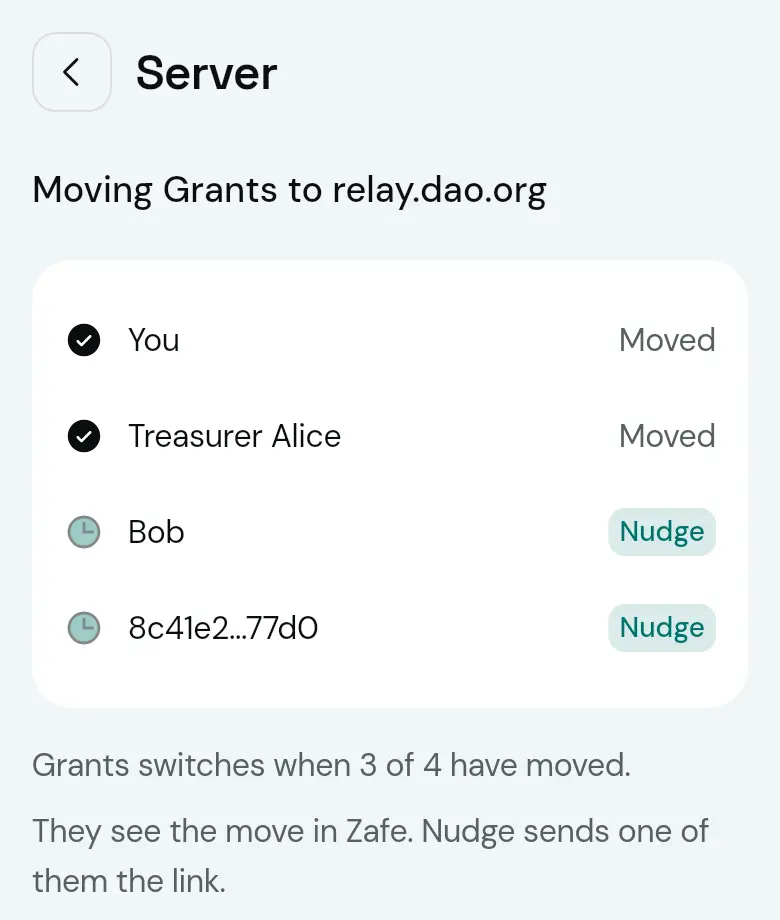
Follow a move
- On Home, under Needs you, find “Move vault to server”. Or open the move link someone sent you.
- Tap Move and unlock. Or Not now.

Nothing connects to the new server until you tap Move. Funds never move: open payments and approvals carry over. A member who hasn’t moved by the switch sees “vault moved to server” and taps Move to continue.
How many must move
The larger of the approval threshold and (members − threshold + 1). So 2 of 3 needs 2, 3 of 4 needs 3, and 2 of 5 needs 4. That way the members left behind can never approve a payment on the old server. A move link expires after 14 days; the member who started the move can Cancel move before the switch.
When the server is down
The Status screen says “Can’t reach the server” and offers Move to another server. After 6 hours down it may suggest one of the listed servers. Until enough members move, payments say “Payments resume when 1 more member moves to …”.
If it goes wrong
- “Two moves were found”
- Two members moved to different servers. Ask your group which server to use.
- “This move expired” or “This link is from an earlier move”
- Ask for a new link. A move that expired has to be started again.
- “You’re already moving this vault”
- A phone follows one move at a time. Cancel that move first.
Checked with Zafe 0.1.23 · 2026-10-27