Approve a payment
Your phone rebuilds the transaction and checks it before you sign.
Steps
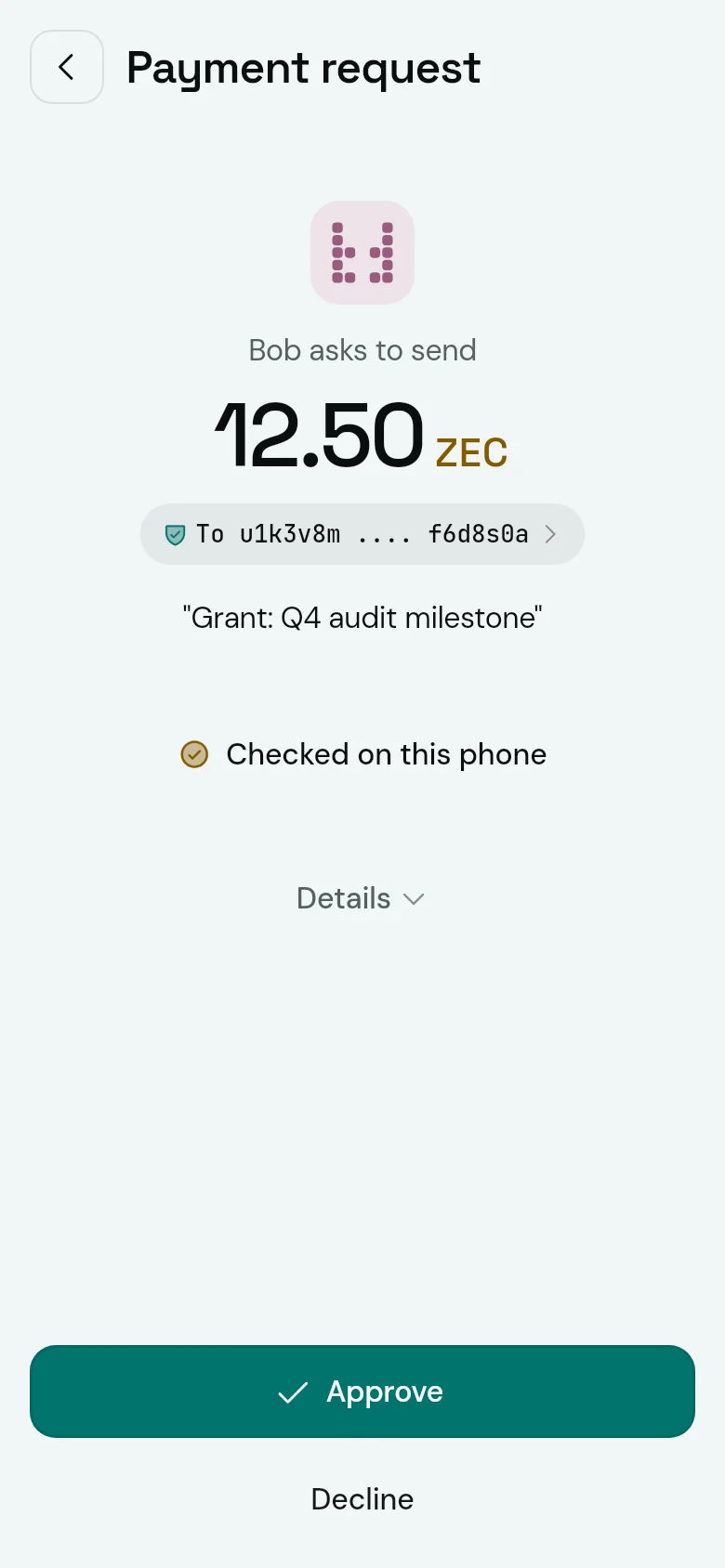
- Open the request from Needs you on Home, or from the notification.
- Read the amount, the recipient and the message. Tap the address to see all of it.
- Wait for Checked on this phone. Approve stays off until the check is done.
- Tap Approve and unlock. Or tap Decline.
Usually that is all: your approval carries your signature. If not, the phone that sends asks yours to sign, and Zafe answers in the background.
What your phone checks
Your phone doesn’t trust the summary or the server. It rebuilds the transaction itself, before you approve and again before it signs:
- Payments. Recipients, amounts and memos are exactly as shown.
- Funds. Only the vault’s money is spent.
- Change. Everything left over goes back to the vault, with nothing hidden in it.
- Cancelled payments. If one may already be signed, this payment spends its funds, so only one of them can go out.
- Fee. Exactly Zcash’s standard fee (ZIP 317).
- Network. The transaction is for this network, with the expected expiry.
Tap Checked on this phone to see the same list in the app.
If it goes wrong
- “This transaction does not do what the request says”
- Don’t approve it. Tell the other members, and write to security@zafe.cash.
- “Couldn’t check. Tap to retry.”
- Usually a connection problem. Tap the line to check again.
- “Approve again”
- A signing round didn’t finish, a signer can’t sign with one tap, or this phone was restored. Tap it to approve once more.
- “Your signature is already out”
- You can’t decline a payment you already signed. Ask its proposer to cancel it.
Checked with Zafe 0.1.23 · 2026-10-27